Parental Controls for Gacha Games on PC, PlayStation and Xbox
Purchase limits, approval requests and play-time controls on PlayStation, Xbox, Steam and Epic, explained for parents of gacha game players.

Gacha games such as Genshin Impact, Honkai: Star Rail, Zenless Zone Zero and Wuthering Waves are free to download, rated Teen by the ESRB, and built around randomized purchases. That combination makes them easy for a young player to start and easy to spend money in without a parent noticing. The good news is that every major PC and console platform has tools to put limits in place, and most of them take only a few minutes to set up.
This guide walks through the purchase and play-time controls that matter most for gacha games on PlayStation, Xbox, Steam and the Epic Games Store, plus the gaps that parents commonly miss. Menu names are taken from the platforms’ official support and family pages as available in October 2026; platforms update their menus from time to time, so if a label looks slightly different on your device, the feature is usually still there.
Before You Start: Three Things to Know
- Controls live on the platform, not inside the game. Gacha games themselves rarely offer meaningful parental settings. Purchases go through the console store, Steam, Epic, an app store or the publisher’s web shop, so that is where limits need to be set.
- Your child needs a child account. Most family controls only work when the child has their own account that is part of a family group managed by an adult. A child playing on a parent’s account inherits the parent’s payment methods and freedoms.
- Every device counts. Many gacha games let one publisher account be played on PC, console and phone. A spending limit on the PS5 does nothing if the same account can buy currency on a tablet with a saved card.
For background on why the “In-Game Purchases (Includes Random Items)” label matters, see our guide to gacha age ratings.
PlayStation: Family Management
PlayStation’s controls are built around a family managed by a family manager, who can appoint other adults as parents or guardians. Settings can be changed on the PS5 under Settings > Family and Parental Controls > Family Management, on the web through Account Management, or in the PlayStation Family app.
Spending
- Monthly Spending Limit caps what a child account can spend on PlayStation Store each month. Purchases are paid from the family manager’s wallet.
- Sony’s support page notes that the limit is 0 by default for child accounts, so a child cannot buy anything until a parent raises it.
- Any appointed guardian can change spending limits, so only appoint adults you trust with that decision.
Play time
- Playtime Settings limit how long and when a child can play.
- Change Playtime for Today lets you adjust the allowance for a single day, which is useful for events or weekends.
- Set the child’s Time Zone correctly so schedules apply at the right hours.
Content and communication
- An age level for games and apps setting blocks titles above a chosen rating, with presets such as “Child”, “Early Teens” and “Late Teens or Older”.
- Communication and User-Generated Content can be set to restrict chat with other players.
- When a game is blocked, the child can send a request, and parents can approve it under Allowed Games, in the app, or by email link.
Xbox: Family Settings
Xbox family controls are managed through a Microsoft family group, either on the console, on the web, or in the free Xbox Family Settings app for phones. Because the settings belong to the Microsoft account, they also apply on Windows and the Microsoft Store on PC.

Spending
- Ask a Parent (often referred to as Ask to Buy) sends the parent a request when a child wants to buy something. The parent can approve, decline or add funds.
- Allowance: parents can add money to a child’s account so that the balance acts as a cap on what the child can buy alone. News coverage of the feature’s launch noted that money added this way is generally not refundable.
- Parents can view the child’s balance and purchase history.
Screen time and content
- Screen time limits set when and how long a child can use the console or Windows devices.
- Content filters allow or block games, apps and websites by age.
- Activity reports summarize what a child has been playing.
- Communication settings control who can message the child and see their activity.
Steam: Steam Families
Valve released Steam Families in September 2024, combining the older Family Sharing and Family View features. A family group has adults and children; adults manage the settings, and children cannot change them.
- Purchase requests: a child can ask an adult in the family to pay for the items in their cart. The adult approves by phone or email, and approved games are added to the child’s account. This removes the need to save a card on the child’s account.
- Playtime limits: adults can set hourly or daily limits and view playtime reports.
- Feature restrictions: access to the Steam Store, Community and Friends Chat can be restricted.
- Game access: adults can allow or restrict specific games.
- Requests: children can ask for extra playtime or access to a feature, and adults can grant it temporarily or permanently.
One thing to watch: several major gacha games on PC are installed through the publisher’s own launcher rather than Steam, and purchases may go through the publisher’s payment system. Steam controls only cover what happens on Steam.
Epic Games Store: Parental Controls
Epic offers parental controls protected by a Parental Controls PIN. According to Epic’s safety pages:
- The PIN can be required for purchases made through Epic’s own payment system.
- Epic applies a daily spending limit for players under 13; purchases above it need the parent’s PIN.
- These controls do not cover payments made on other platforms such as PlayStation, Steam, Xbox and Nintendo Switch.
If a child plays a gacha game through the Epic Games Store on PC, the Epic controls are relevant. If they play the same game through another launcher, they are not.
The Gaps Parents Most Often Miss
Publisher web shops and launchers
Gacha publishers often sell premium currency through their own PC launcher or website, sometimes with bonus offers. Those payments bypass console and Steam controls entirely. The most reliable defense is simple: do not save a payment card on any account the child can access, and do not share card details.
Phones and tablets
The same account can usually be played on mobile, where the app store’s controls apply. Apple and Google both offer family purchase-approval and screen-time tools; set them up on any device the child uses.
Publisher account rules
Gacha games require a publisher account (such as a HoYoverse or Kuro Games account) in addition to the platform account. Publishers set their own age requirements and parental consent rules in their terms of service, and these vary by region. Read them when creating an account for a child, and consider managing the account’s email address yourself.
Gift cards as a workaround
Prepaid store cards are a useful tool for a fixed budget, but they can also be bought and redeemed by a child without parental involvement. If you use them, agree on the amount together.
A Simple Setup Checklist
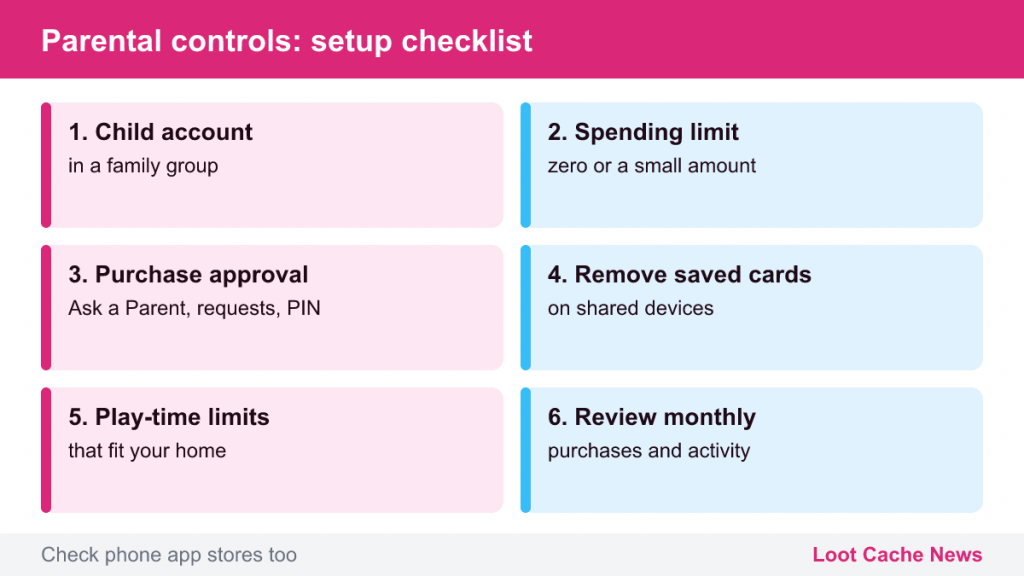
- Create a child account on each platform the child uses and add it to your family group.
- Set a spending limit of zero, or a small fixed amount you have agreed on. On PlayStation, zero is already the default.
- Turn on purchase approval: Ask a Parent on Xbox, purchase requests on Steam, the PIN on Epic.
- Remove saved payment methods from any shared device or account.
- Set play-time limits that fit your household, remembering that gacha games have daily tasks designed to bring players back each day.
- Check mobile app store controls if the account is also played on a phone or tablet.
- Review purchase history and activity reports once a month.
Quick FAQ
Will a spending limit stop my child from earning free pulls?
No. Platform limits only affect real-money purchases. Premium currency earned through quests, exploration and events is unaffected, so a child can still pull with what they earn in-game.
Can my child get around controls by making a new account?
It is possible on some devices, which is why a password on the console’s adult accounts and settings matters. On PS5 and Xbox, make sure the adult account is protected and that new accounts cannot be created or signed in without your approval.
What if a purchase was made without permission?
Contact the support team of the platform where the purchase was made, as soon as possible. Refund policies differ between platforms and are not guaranteed, so prevention is far more reliable than a refund request.
Are play-time limits useful for gacha games specifically?
They can be. Gacha games are built around daily tasks and stamina that refill over the day, which encourages frequent check-ins. A fixed daily window helps keep that routine in proportion.
Talk About It, Too
Technical controls work best alongside a conversation. Explaining how gacha pulls work, what pity and drop rates mean, and why a countdown timer is designed to create urgency helps a teenager make better choices when the controls are eventually loosened. Agreeing on a budget together, including the option of zero, gives them a rule they understand rather than one they want to get around. Our guide on setting a spending limit is written so that players of any age can use it.
None of these games require spending to enjoy the story, explore the world or play with friends. With limits in place, they can be just that: games.